It counts for you, with no mistakes
Nobody copies numbers from paper. The system works out the fuel use on its own. It cannot slip up or misread handwriting.
The driver writes the trip in the phone. Besides the archive, RUNAGA automatically works out the numbers that matter.
How to set up RUNAGAWhy RUNAGA
Nobody copies numbers from paper. The system works out the fuel use on its own. It cannot slip up or misread handwriting.
You get in only with a password and a code from your phone. The connection is encrypted. Every company keeps its data apart.
No more digging through folders. Type in a truck, a driver or a shift and you see it right away.
For carriers
RUNAGA shows which truck uses more fuel than it should. It draws the numbers in a chart. You see at once where money is going.
What you pay
or €200 / year
Within 30 days you can withdraw from the contract and we refund your money.
The pictures are examples and they are in English. RUNAGA speaks 29 languages — the app and the company system.
Any number of drivers, with the free RUNAGA Staska app.
The pictures are examples and they are in English. RUNAGA speaks 29 languages — the app and the company system.
The app for drivers:
For independent drivers
Do you drive for a company that has no system? Lite is just for you. Write the shift in your phone and the report goes to the company e-mail on its own.
RUNAGA speaks your language. The app and the company system are both translated.
or €20 / year
Pay for a year and the first 7 days are free. We take the money only after that.
Get RUNAGA Lite:
The pictures are examples and they are in English. RUNAGA speaks 29 languages — the app and the company system.
Getting started
When you register, RUNAGA asks you to set up two-step verification (2FA). Besides your password, you will enter a 6-digit code shown by an app on your phone. It takes two minutes.
You need an authenticator app for the codes. We recommend Google Authenticator – it is free for iPhone and Android. Install it before you register.
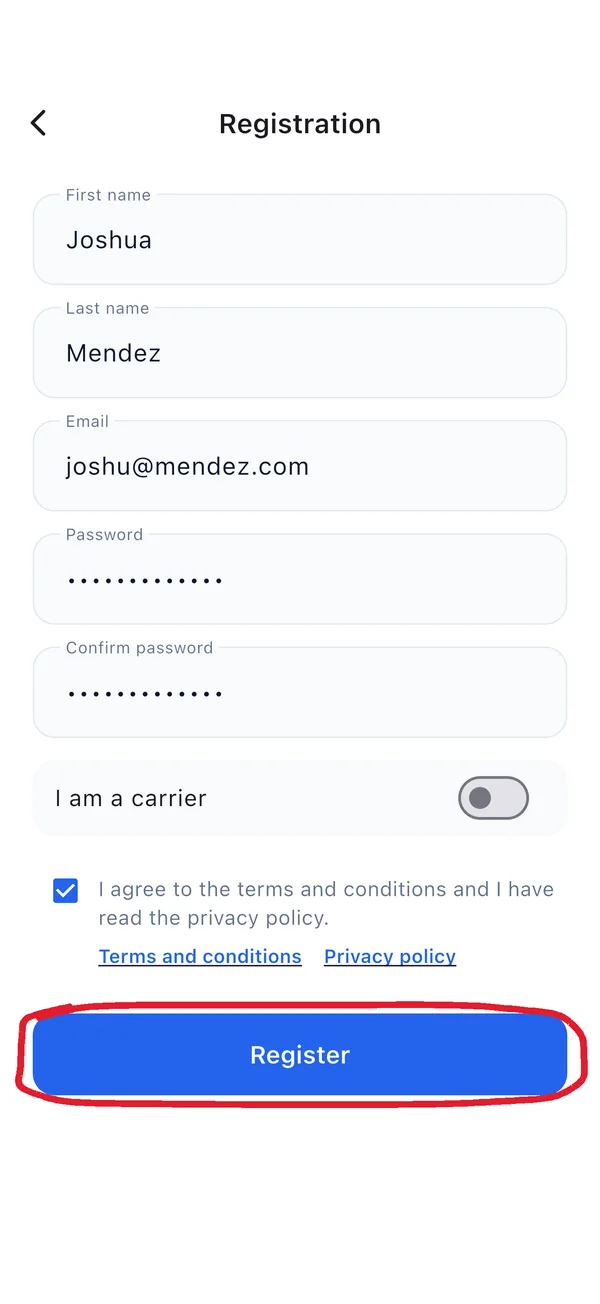
Fill in your name, email and password, accept the terms and finish the registration.
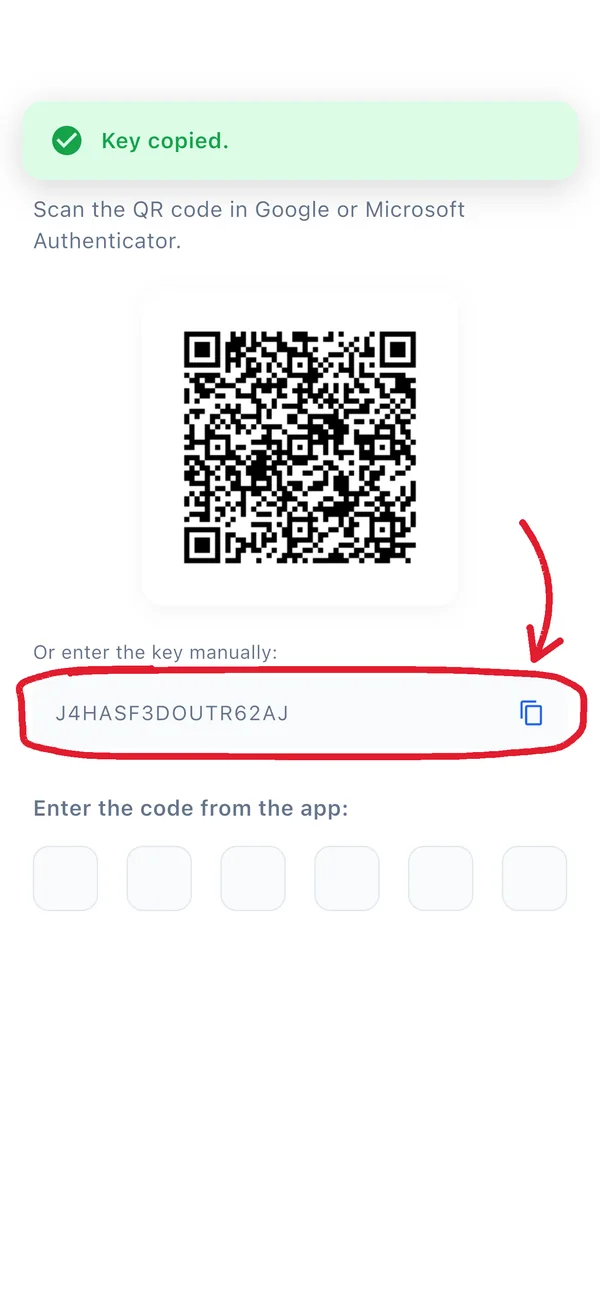
A QR code appears with a key below it. You cannot scan a QR code on the same phone – tap the key to copy it. The key in the picture is only an example – use the one on your own phone.
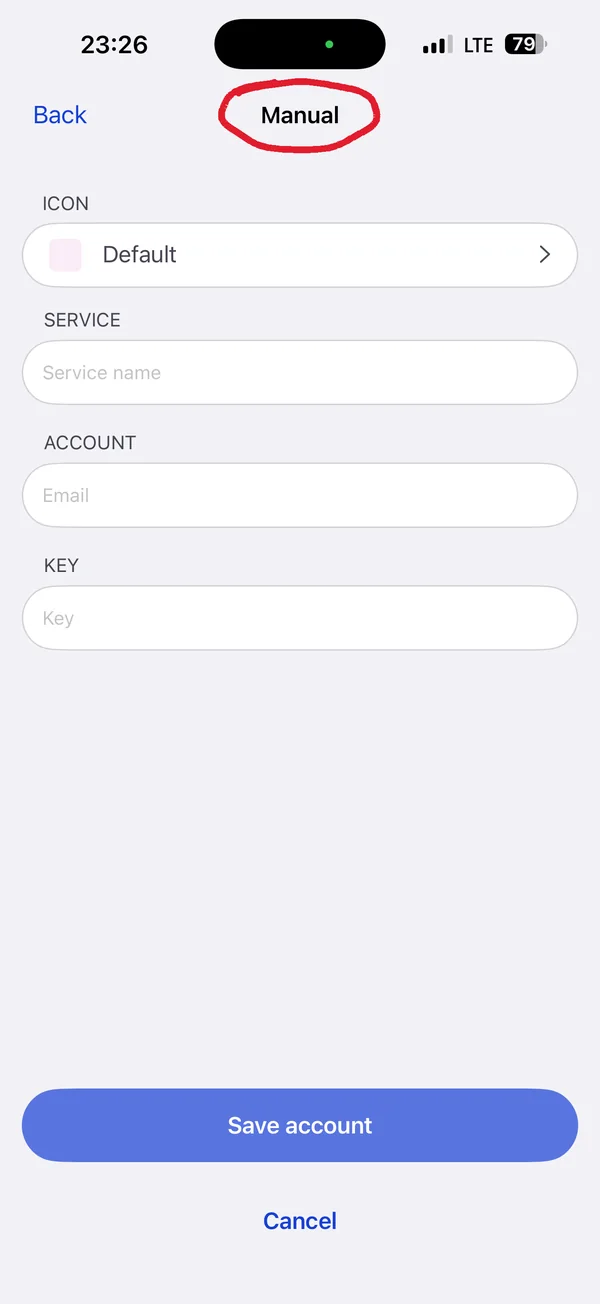
Install Google Authenticator (free) or another 2FA app. Open it, tap + and choose to enter a key manually.
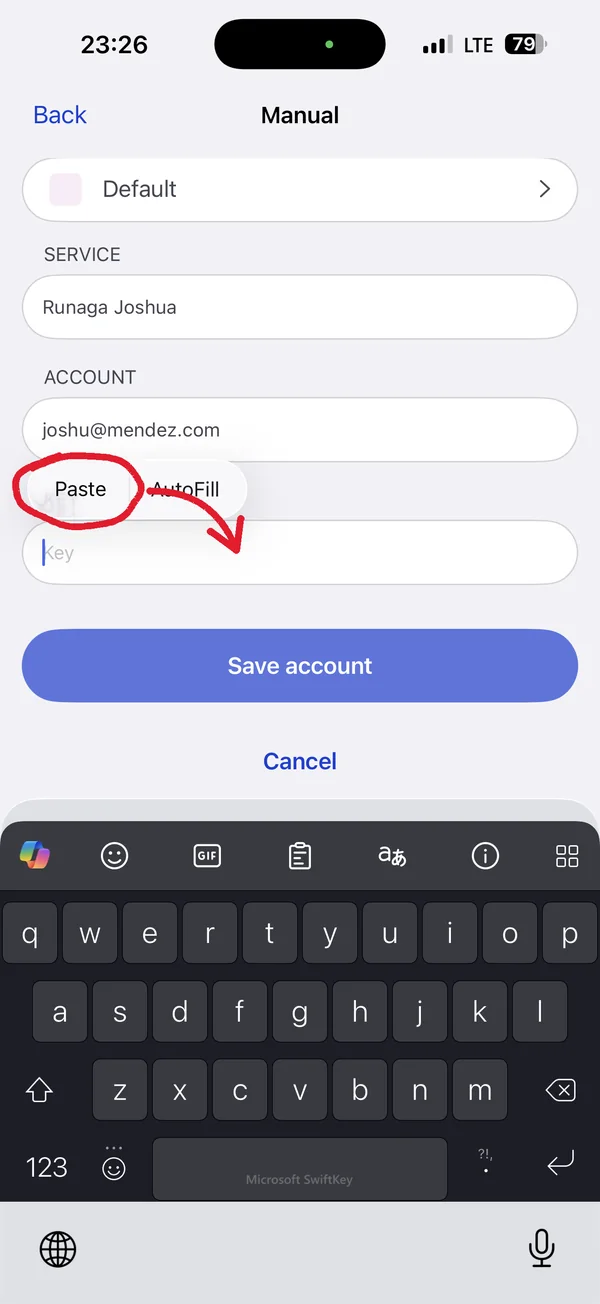
Paste the copied key into the Key field. As the name, type for example RUNAGA.
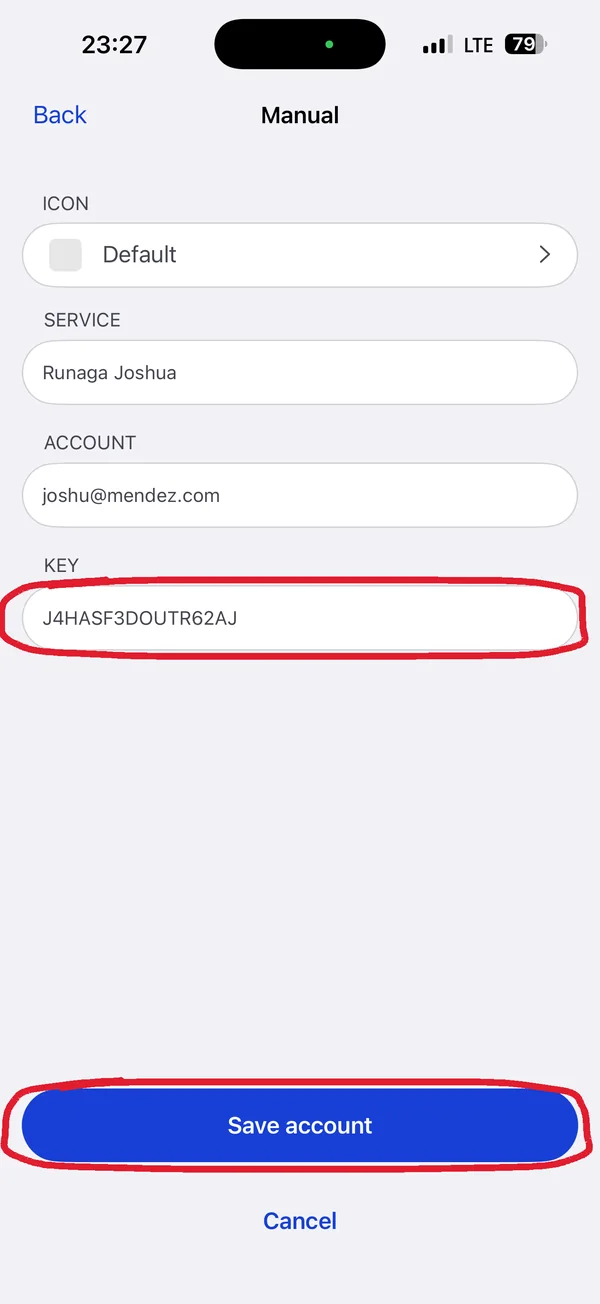
Check that the key is pasted and save the account.
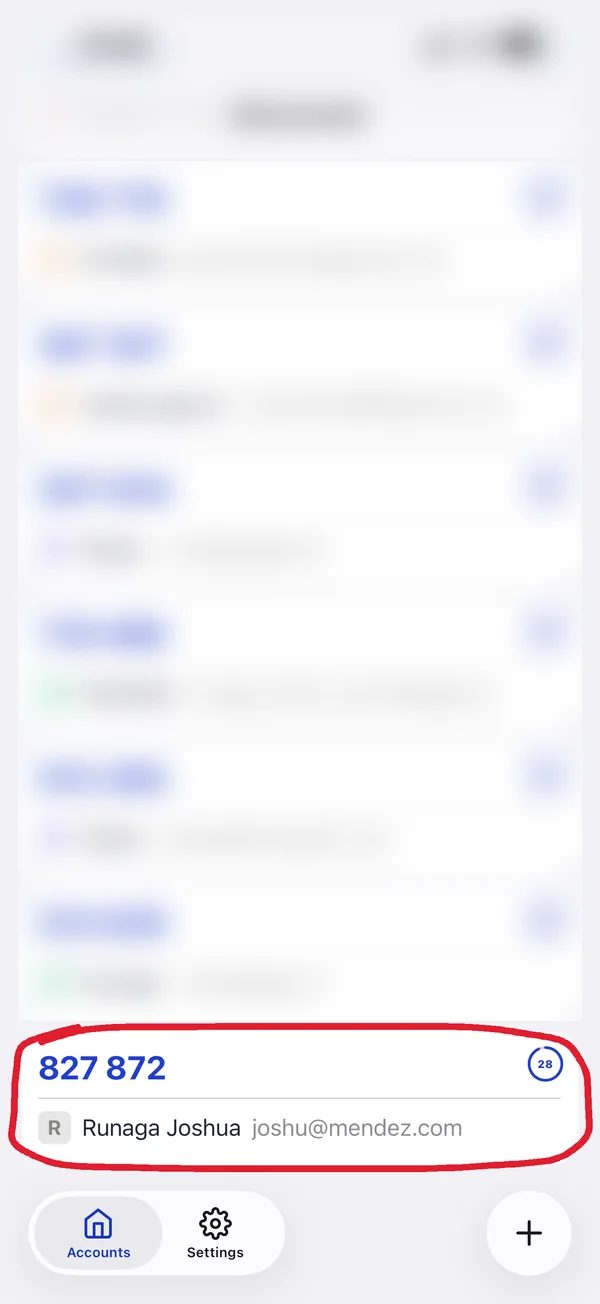
The authenticator shows a 6-digit code for RUNAGA. It changes to a new one every 30 seconds.
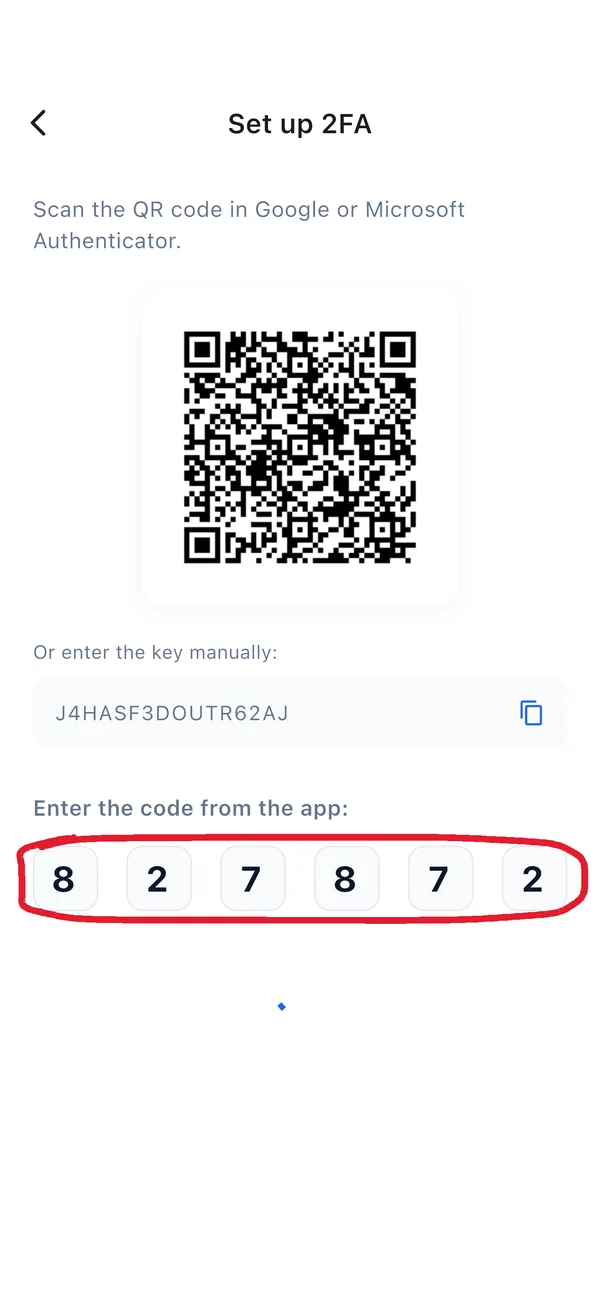
Go back to RUNAGA and type the code into the six boxes while it is valid.
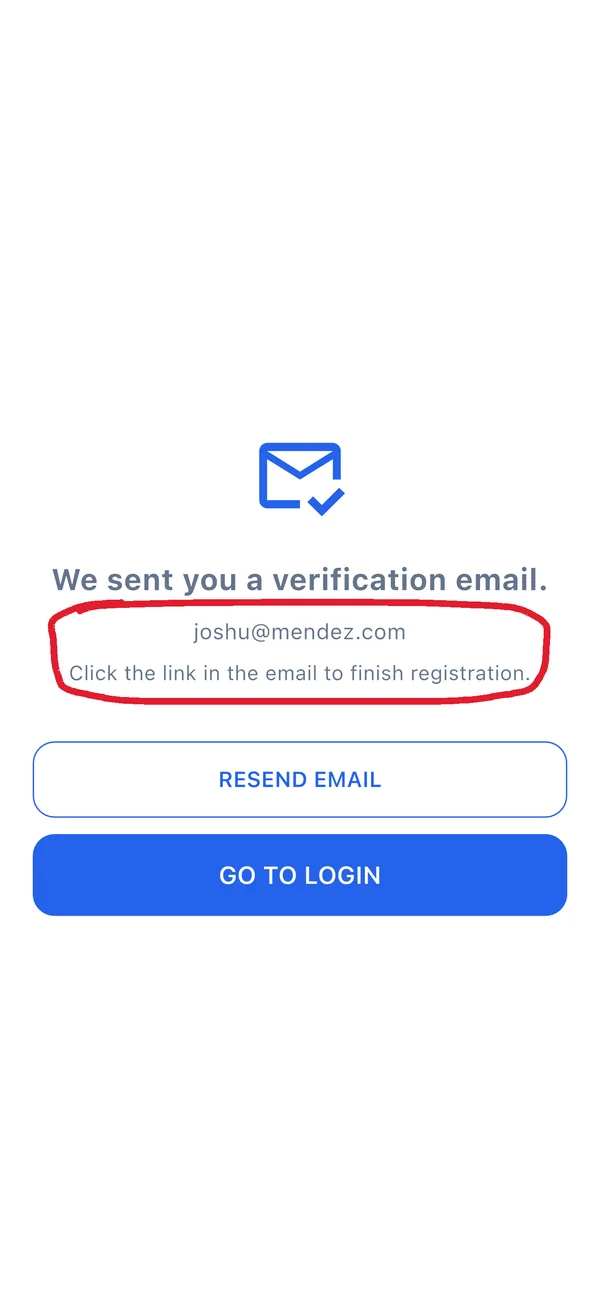
You will receive an email with a link. Click it and you can log in.
The screenshots show one of the authenticator apps. Google Authenticator looks slightly different, but the steps are the same: + → enter a key → paste the key → save.
You will enter a code from the authenticator every time you log in to RUNAGA. So do not delete the app, and move it over when you change phones.
FAQ
No. RUNAGA is a logbook. It does not follow the driver and it does not collect GPS points.
Contact
Write to us using the form. We will confirm by e-mail that your message arrived.